
Plugins

Browse the three plugins. All are free to download.

3 products

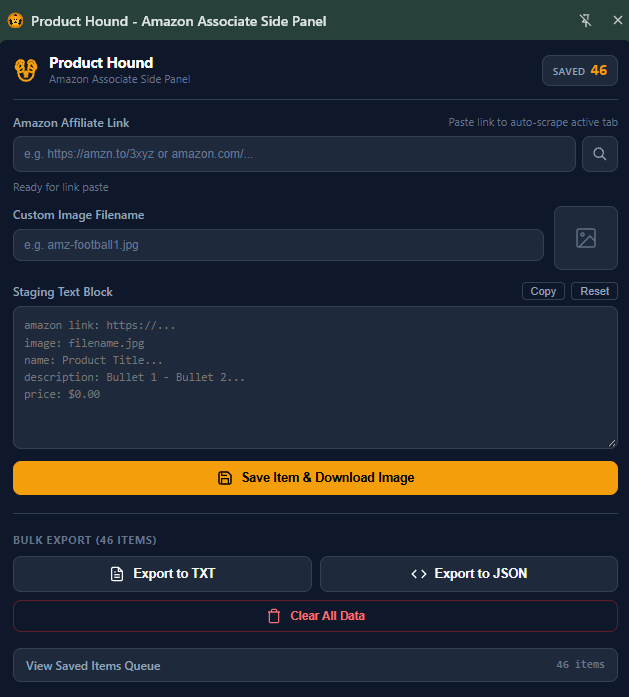
Screenshot of the Product Hound side panel
Amazon Associate productivity plugin for Chrome Version 1.0.0

Product Hound

Streamline your affiliate marketing workflow with Product Hound, a dedicated side panel extension designed to save you time when sourcing Amazon products. Instead of manually copying and pasting product specs or downloading images one by one, Product Hound lets you auto-scrape details directly from your active tab just by pasting your affiliate link. It provides a clean, organized workspace to stage, review, and export your affiliate data in bulk directly from your browser.

Full description

The core feature of the extension revolves around its seamless data capture and staging capabilities. Simply paste your Amazon affiliate link into the top field, and the plugin automatically pulls the product's title, price, and description into a clean text block. You can also assign a custom image filename to ensure your downloaded photos are immediately organized and ready for your media library. Before saving, the staging text block allows you to review and edit the formatted product details, with quick options to copy the block to your clipboard or reset it to start over.

Once your details are staged perfectly, a single click of the "Save Item & Download Image" button instantly downloads the product photo to your machine while banking the text data. As you source multiple products, the built-in queue system keeps track of how many items you have saved during your session. When you are ready to move everything to your website, you can bulk export your entire list of saved items directly to TXT or JSON formats for rapid data entry, or use the clear data function to start a fresh batch.

  • Auto-fills from a pasted affiliate link
  • Custom image filenames
  • Bulk export to TXT or JSON
  • Saved items queue

How to install

  1. Download the ZIP file.
  2. Unzip it to a folder on your computer.
  3. Open chrome://extensions and turn on Developer mode.
  4. Click “Load unpacked” and select the unzipped folder that contains manifest.json.
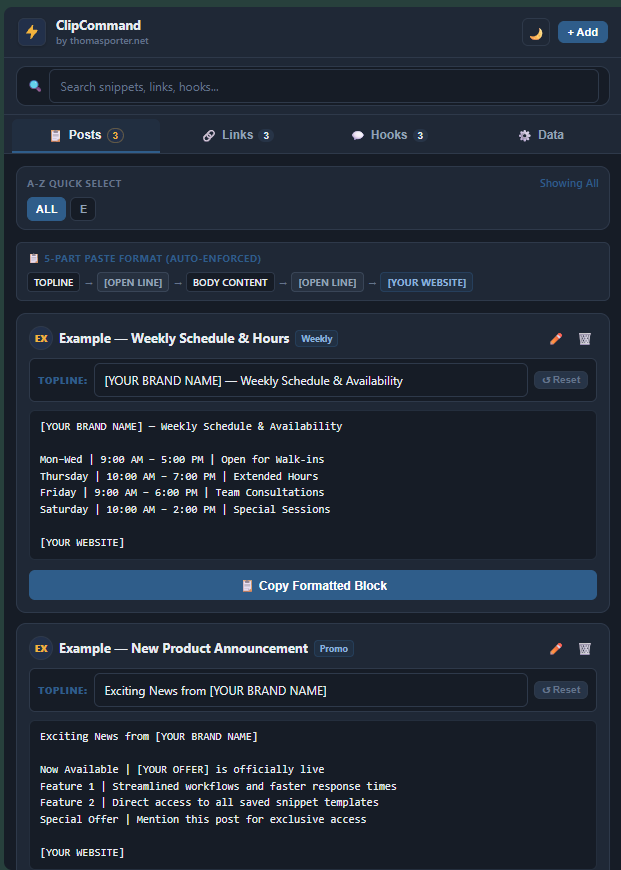
Screenshot of the ClipCommand side panel
Social Media Marketing Tool Version 1.0.0

ClipCommand

ClipCommand is a comprehensive social marketing side panel extension designed to streamline the management and distribution of formatted social snippets. The plugin centralizes your promotional text blocks, allowing you to organize, search, and copy perfectly formatted content directly from your browser. It serves as a dedicated repository for your marketing assets, keeping your most frequently used promotional data readily accessible in a compact panel.

Full description

The extension features a robust organizational system divided into dedicated tabs for Schedules, Links, Hooks, and Data, keeping your content neatly categorized. ClipCommand utilizes an auto-enforced 5-part paste format that automatically structures your posts with a custom topline, schedule or link data, and your promotional URL separated by clean line breaks. Users can quickly type and edit the custom topline for each individual block, with a dedicated reset button available to quickly clear the input and adjust the messaging for different platforms.

Navigating large amounts of saved snippets is simplified through an integrated search bar and an A-Z quick select filter, allowing you to instantly isolate specific teams, opponents, or topics. Each saved snippet card includes quick-action edit and delete icons alongside a prominent "Copy Formatted Block" button that sends the fully structured text straight to your clipboard. The interface is further enhanced by a top navigation bar featuring an "Add" button to continually build your repository and a toggle to switch the panel's visual theme.

  • Schedules, links, hooks, and data tabs
  • Enforced 5-part paste format
  • Search and A–Z quick select
  • Custom toplines with copy, edit, and delete actions

How to install

  1. Download the ZIP file.
  2. Unzip it to a folder on your computer.
  3. Open chrome://extensions and turn on Developer mode.
  4. Click “Load unpacked” and select the unzipped folder that contains manifest.json.
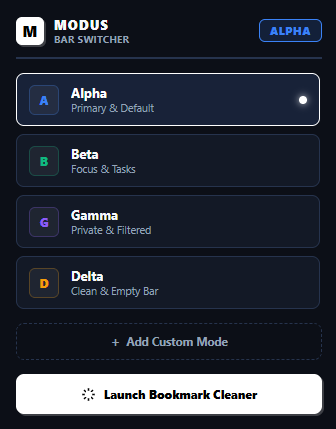
Screenshot of the Modus bookmark bar switcher
Browser environment customization plugin for Chrome Version 1.1.0

Modus Bookmark Bar

Modus Bookmark Bar is a dynamic browser extension designed to revolutionize how you organize and interact with your saved links. Instead of a single, cluttered row of URLs, this tool allows you to instantly toggle between distinct, context-aware bookmark profiles tailored to your current activity. By segmenting your digital workspace, it transforms your browser into a highly focused environment that adapts to your daily workflow.

Full description

The core of the extension is the Bar Switcher, which comes pre-configured with four distinct modes: Alpha for primary and default links, Beta for focus and tasks, Gamma for private and filtered browsing, and Delta for a completely clean and empty bar. If your workflow requires more specific categories, you can easily expand your options using the "+ Add Custom Mode" feature. This seamless mode-switching allows you to compartmentalize your online life, ensuring you only see the tools and links relevant to your immediate goals.

To assist with sorting your existing links, the extension includes a dedicated utility associated with screenshot-modusbar-cleaner.png. Opening in a distraction-free, full-size browser tab, the Modus Cleaner presents your links individually so you can rapidly route them to your Alpha, Beta, or Gamma modes, or choose to delete or skip them using quick keyboard shortcuts. Built for large collections, the cleaner features a top progress bar to track your sorting milestones and a "Save & Continue Later" button, allowing you to organize your bookmarks in manageable sessions.

  • One-click bookmark bar switching
  • Custom modes you define
  • Bookmark cleaner

How to install

  1. Download the ZIP file.
  2. Unzip it to a folder on your computer.
  3. Open chrome://extensions and turn on Developer mode.
  4. Click “Load unpacked” and select the unzipped folder that contains manifest.json.